Two people log in to the same HubSpot account. One can update a contact, build a report, or use a sales tool. The other cannot.
That difference can come from several places: the subscription your business purchased, the seat assigned to each person, their permissions, or the records they’re allowed to access.
In this installment of HubSpot Without the Headache, Professor Yeti breaks down three settings that work together: seats, teams, and permissions. Understanding the difference helps you give people the access they need and investigate problems before purchasing more access.
The quick answer: What is the difference between HubSpot seats, teams, and permissions?
Seats determine which tools a user can access within your subscription. Teams organize users into groups that can support reporting and access rules. Permissions determine which actions each person can take.
A user is a person with a login to your account. Their seat, team membership, and permissions help determine their experience after they sign in.
Your subscription sets the overall boundaries. Assigning a seat or changing permissions does not add a feature your plan does not include.
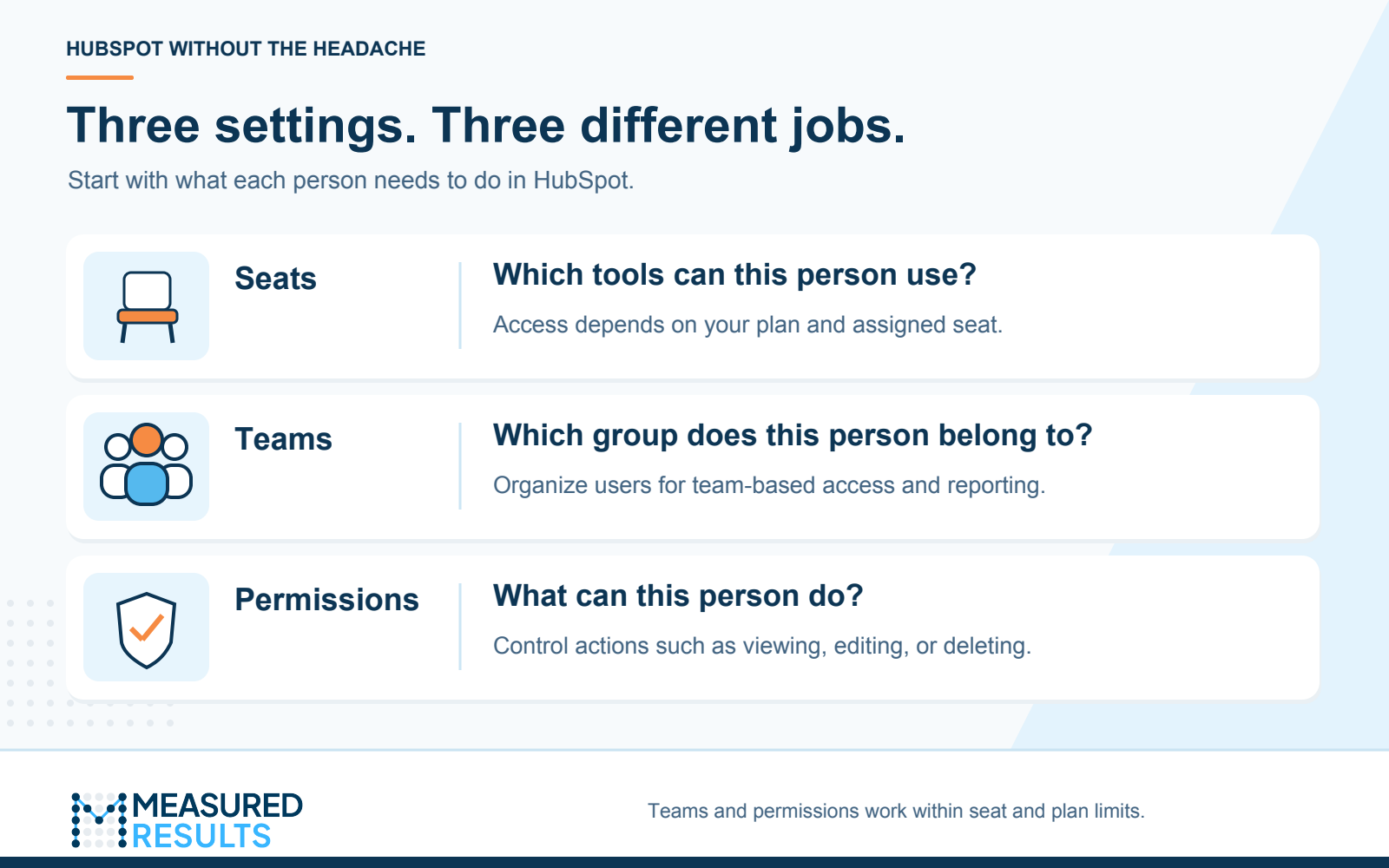
Seats, teams, and permissions serve different purposes and work together within your subscription. Graphic by Measured Results.
For the broader packaging picture, start with our explanation of HubSpot hubs, seats, and credits.
What is a HubSpot seat?
A seat defines a user’s access to HubSpot tools. Choose it based on the work that person needs to perform.
For example, an executive who only reviews reports has different needs from a marketer who sends campaigns or a salesperson who uses specialized sales features. A job title alone does not tell you which tools someone needs.
First, identify the seat model in your account. HubSpot documents multiple models, so a seat name you see in an article or another company’s account may differ from yours. Start in Settings → Users & Teams and review the seats available in your account alongside your subscription details.
Here are two models you may encounter:
| Seat model | Names you may see | What to understand |
|---|---|---|
| Core and specialized seats | Core, Sales, Service, and Revenue | Core provides access to core tools in purchased subscriptions. Specialized seats provide the corresponding Professional or Enterprise product access. For Sales Hub and Service Hub Starter, access is provided through Core seats. |
| Flexible Seats-and-Credits Pricing | GTM (go-to-market) and Ops (operations) | GTM seats support people working with customers and running marketing, sales, and service activities. Ops seats provide selected automation, reporting, and governance tools and are available on Professional and Enterprise. |
HubSpot also notes that some earlier flexible-pricing subscriptions may show Core and Front Office labels. The names and entitlements in your account matter more than matching a generic chart. Core and specialized seat guidance · Flexible pricing seat guidance
View-Only seats are intended for people who primarily need visibility. They do not provide normal editing access. Check the rules for your model rather than assuming they support every interaction a user needs.
Partner seats are available free to eligible HubSpot Solutions Partner personnel. Working with an agency or freelancer does not automatically make that person eligible. Developer seats provide access specifically to the developer platform. HubSpot Product & Services Catalog
What do teams do in HubSpot?
Teams group users by something meaningful to your business, such as department, region, or responsibility. You might create East Sales and West Sales teams to organize regional reporting and record access.
A team is a group of users, not a permission template. Adding a person to East Sales does not automatically assign every permission their teammates have.
Team membership can affect record visibility when permissions are configured around the user’s team. For example, a salesperson may be allowed to view contacts owned by their team, while a manager needs visibility across regions. A record is an individual item in HubSpot, such as a contact or deal; its owner is the user assigned responsibility for it.
Team features depend on your subscription. HubSpot’s team-management guidance lists Professional and Enterprise availability, with Enterprise required for nested teams, which place one team beneath another in a hierarchy. Where your account distinguishes main and extra teams, membership can behave differently for reporting and routing. Confirm the behavior you need before using team membership to drive a process. HubSpot’s team guidance
What do permissions control?
Permissions govern actions such as viewing, creating, editing, deleting, or exporting information. Depending on the tool, they can also control activities such as publishing content or managing settings.
Someone may be allowed to view a contact without being allowed to edit it. Another person may be allowed to edit contacts they own but not contacts belonging to another team.
Permissions operate within the access available through the user’s seat and your subscription. Turning on a permission does not unlock a tool excluded from the seat. Likewise, assigning a seat does not mean every permission should be enabled. HubSpot’s user permissions guide
For consistent setup, document the access each role requires. HubSpot’s reusable permission sets, available with eligible Enterprise subscriptions, let you save and apply a defined collection of permissions. Team membership and permission sets are separate settings. Copying permissions also does not assign a required paid seat. Create and assign permission sets
See how it works: “Our new salesperson can log in, but cannot open the contacts they need”
Imagine Jordan joins the East Sales team. A marketing coordinator assigns Jordan a follow-up task for a demo request, but Jordan cannot open the associated contact.
The team could assume Jordan needs a different seat. First, it should check what is preventing access.
Check the subscription and seat. Confirm that the account includes the tools Jordan needs and that the assigned seat supports Jordan’s work. Check basic contact access separately from any specialized sales tools Jordan will use later.
Check permissions and ownership. Suppose Jordan is allowed to view only contacts they own, while the requested contact still belongs to the marketing coordinator. Having a task assigned to Jordan is not proof that the associated record is accessible.
Make a change that matches the intended handoff. If Jordan should own the contact, confirm the handoff and update ownership. If Jordan should work with records owned by East Sales, review team membership and the relevant team-based permissions. The correct setup depends on how your business assigns responsibility.
Test the complete process. Have Jordan confirm they can open the contact, complete the follow-up, and record the outcome. If another required tool is unavailable, investigate its specific seat and subscription requirements.
The goal is to identify the missing access and make the appropriate change, rather than assuming another seat purchase will solve it.
What should you check before changing access or buying another seat?
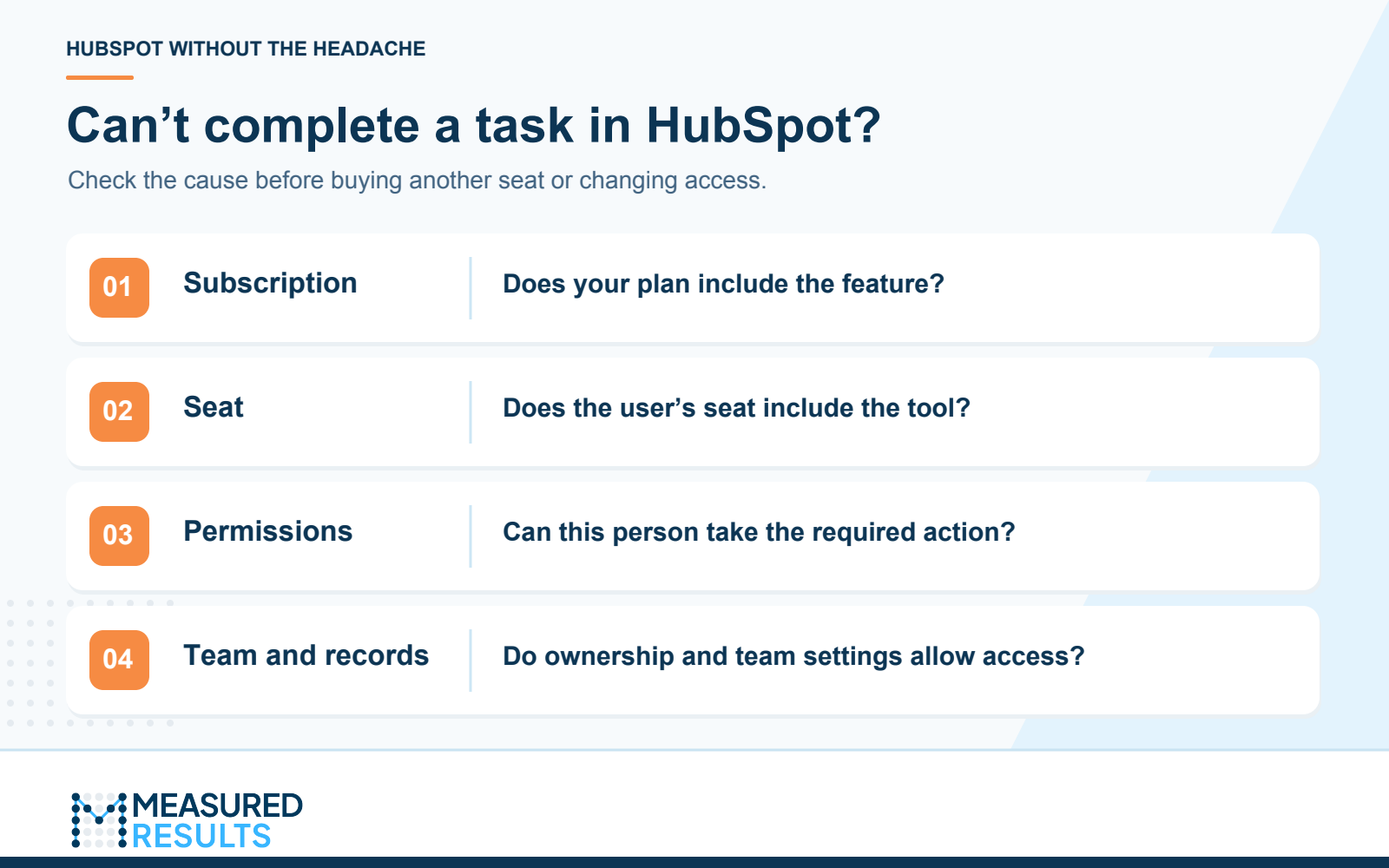
Check the source of an access problem before changing permissions or purchasing another seat. Graphic by Measured Results.
Start with a specific statement: “This person needs to do this action, using this tool, on these records.” Then check:
- Subscription: Does your account include that feature, at the edition you purchased?
- Seat: Does the user’s assigned seat include the tool?
- Permissions: Is the person allowed to perform the action?
- Teams and records: Do team membership, record ownership, and relevant access settings let the person work with the intended information?
Avoid using Super Admin access as a routine fix. It gives broad account control and should be reserved for people whose responsibilities require it.
Does adding or removing a user change your HubSpot bill?
It depends on whether the change requires an additional paid seat and on your subscription terms. Creating a user, assigning an existing seat, purchasing another seat, and removing a seat from your subscription are different actions.
When someone leaves, review their records, meeting links, and automated processes that name them. An automated process might still try to assign work or send notifications to that person. Reassign responsibilities and remove their account access as appropriate. Separately, confirm whether an unused paid seat should be reassigned or removed from your subscription, and when any billing change takes effect. HubSpot’s user removal guidance · HubSpot’s subscription terms

Professor Yeti’s Takeaway
Start with the work each person needs to do.
Choose one role in your account and write down its required tools, actions, and records. Compare that list with the assigned seats, teams, and permissions, then test a real task from start to finish.
That review can reveal unnecessary access, missing permissions, or a genuine need for another seat. It also gives you a repeatable starting point when someone joins, changes roles, or leaves.
Measured Results can help you review user access, organize your teams, and configure HubSpot around the way your people work.
Information in this article was accurate as of November 10, 2026. HubSpot’s products, packaging, and pricing may change and can vary by subscription. For the latest details, visit the HubSpot Product & Services Catalog.