Your team hits another manual step. Someone asks, “Would this be easier if we upgraded?”
Sometimes, yes. Sometimes, the capability is already there and needs a better setup.
After explaining hubs, seats, and credits and which hub does what, let’s tackle the next question: which edition fits the work you need done?
The quick answer: How do HubSpot’s plans compare?
Starter generally provides essential tools, Professional adds more depth in areas such as automation and reporting, and Enterprise offers more advanced ways to organize data and control access. The specific differences depend on the product.
A hub is a product focused on an area of your business, such as marketing or sales. An edition, such as Starter, Professional, or Enterprise, determines the features and limits available within that product. Your account may include multiple products at different editions.
An upgrade is worth evaluating when your current plan cannot support a specific task or the amount of work you need to handle, and the expected improvement justifies the full cost. Company size alone won’t tell you which edition fits.
What changes between Starter, Professional, and Enterprise?
These editions offer different levels of functionality. The following is a starting point for comparing them; individual features and limits vary by hub.
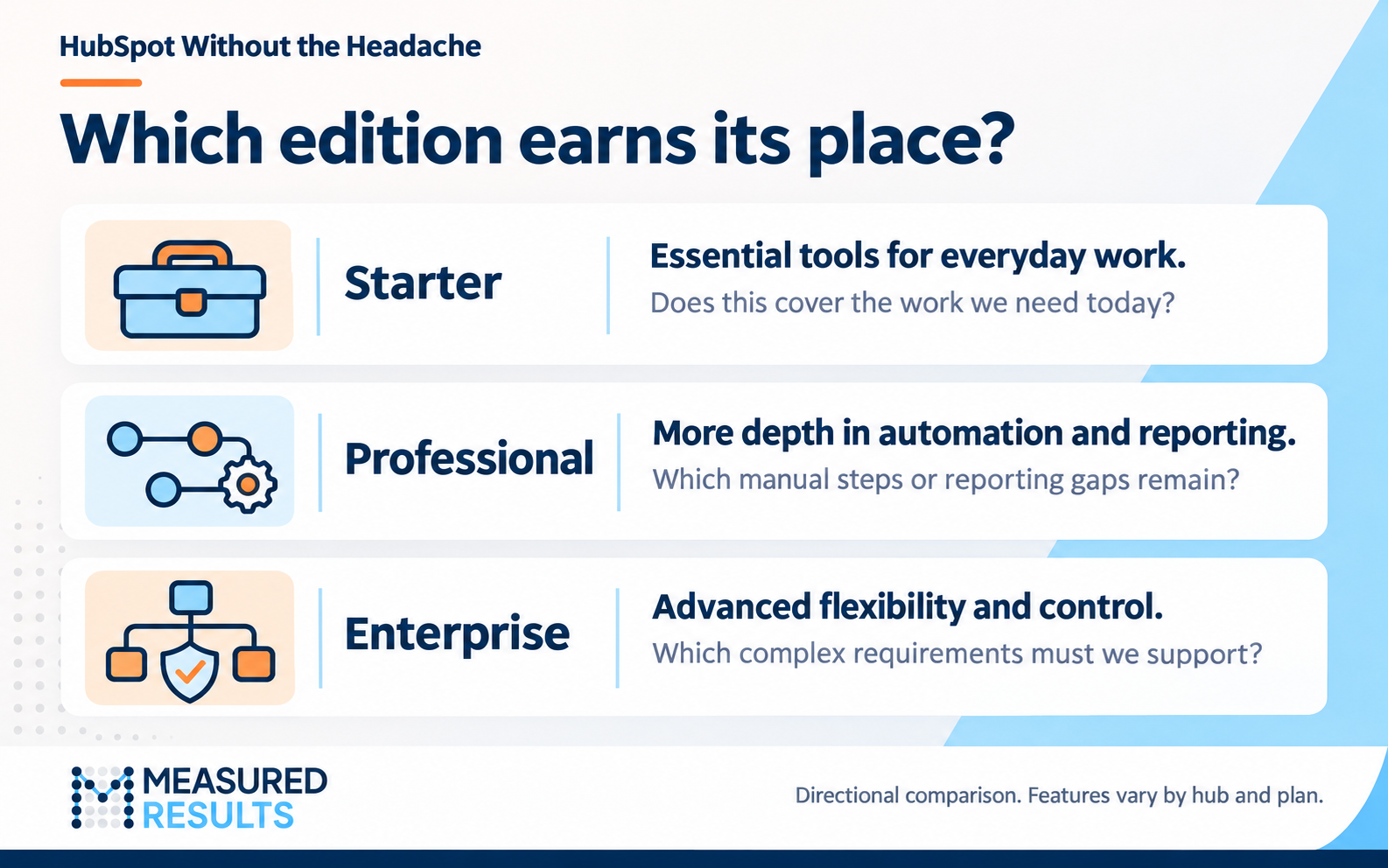
Evaluate the edition against the work you need done. Specific features vary by hub and plan. Graphic by Measured Results.
Starter: Check whether its tools and usage limits cover your everyday work. If your team can complete its processes without significant workarounds, Starter may remain a good fit as your business grows.
Professional: Consider it when you need more involved automation, such as taking different actions based on a contact’s information, or reporting that your current plan cannot provide. Identify the specific steps or questions your existing tools cannot handle.
Enterprise: Consider it when you need more specialized ways to organize business information or manage who can access and change it. Identify the exact requirement, then verify that the relevant product’s Enterprise edition supports it.
Compare the editions for the product you need. Marketing Hub Professional and Sales Hub Professional serve different purposes, even though they share an edition name. Marketing Hub editions · Sales Hub editions
What does an upgrade actually unlock?
An upgrade can add features, increase limits, or both. Connect each proposed addition to work your team needs to do.
Automation is one example. In HubSpot, a workflow is an automated process: a condition starts it, then HubSpot carries out specified actions. A form submission might start a process that creates a follow-up task and notifies a team member.
HubSpot’s full workflow editor requires an eligible Professional or Enterprise subscription, and the available actions depend on the products you own. Starter can include simpler automation. Write down the steps you need before assuming an upgrade is necessary. HubSpot’s workflow requirements
Custom objects are another example. HubSpot organizes information into categories such as contacts, companies, and deals. These categories are called objects. A custom object lets you define another category, such as properties managed by a real estate business, with its own records linked to relevant contacts or companies.
Custom objects require an eligible Enterprise subscription. First, check whether the categories already available, additional fields, and links between records can meet your needs. HubSpot’s custom object guidance
The useful question is: “Which capability do we need, and what would we use it for?”
What should you check before upgrading?
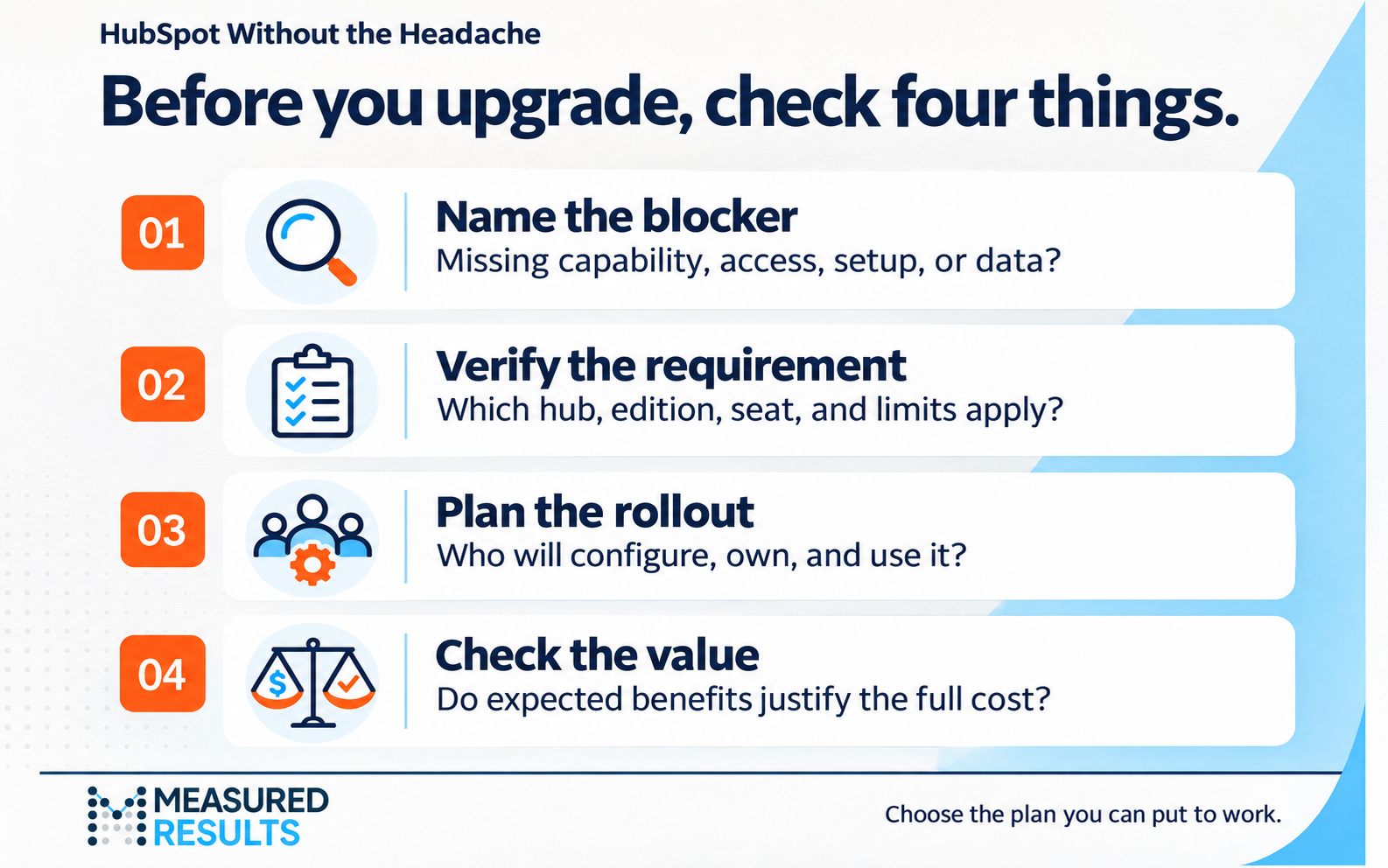
Define the need, verify the requirements, plan adoption, and assess the value. Graphic by Measured Results.
1. Identify what is getting in the way. Is a feature missing, or have you reached a usage limit? Could the problem instead be a tool that hasn’t been configured, a user who lacks access, or incomplete data? For example, assigning requests by territory will be unreliable if territory information is missing.
2. Check both the subscription and the users. Confirm which product and edition support the task, along with any limits. Then check the seat and permissions each person needs. A seat determines which tools a user can access; permissions govern what they can do within that access. A higher edition alone may not resolve a user’s access problem. HubSpot’s seat and access guidance
3. Plan who will make it work. Name the person responsible for setup, testing, and ongoing maintenance. Include time to train the people who will use it.
4. Compare the full cost with the expected improvement. Look beyond the advertised subscription price. Depending on your purchase, costs may include additional seats, marketing contact allowances, usage credits for certain features, onboarding, and implementation. Ask for a quote based on your account and requirements, and include your team’s ongoing administration time. HubSpot’s pricing catalog
See how it works: “We’re manually assigning every demo request”
A marketing coordinator reviews each demo request, identifies the appropriate salesperson, and sends them a notification. As requests increase, that manual handoff starts slowing down follow-up.
The team wants HubSpot to assign requests based on territory, create a follow-up task, and alert a manager when a request goes untouched.
First, check what your current subscription supports. Can your existing tools automate those steps? If so, the next move may be configuring and testing what you already have.
Then, check who needs access. The salesperson needs to be a user in your HubSpot account, with the appropriate seat and permissions to complete their part of the process. Having automation available doesn’t automatically give everyone access to the tools it uses. Check the requirements against your specific plan, including whether additional seats would add to the cost.
If a necessary capability is missing, evaluate the upgrade. Identify the subscription that supports the assignment rules and follow-up actions you need. Include any additional seats, setup, and training in the total cost.
Now there’s a concrete decision to evaluate: would reducing manual coordination and helping sales respond sooner justify that investment?
The reason to upgrade is the improvement you can put to work.

Professor Yeti’s Takeaway
Choose the edition you can put to work.
Before upgrading, finish this sentence:
“We need [a specific tool or function] to improve [a business process]. [Person responsible] will implement it, and we’ll measure [the improvement we expect].”
That improvement might be fewer hours spent assigning requests or a shorter time between a demo request and the first sales response.
If those blanks are hard to fill, clarify the requirement first. If they’re clear, you have a practical starting point for comparing plans.
Measured Results can help you review the tools you already have, check how they’re configured, and determine whether an upgrade would help your team.
Information in this article was accurate as of November 3, 2026. HubSpot’s products, packaging, and pricing may change and can vary by subscription. For the latest details, visit the HubSpot Product & Services Catalog.